
Web Site eXtractor - Offline Browser
Website eXtractor - The quickest and most reliable way to handle downloading jobs offline.
Do you need to keep track of changes that are made to some websites? Would you like to save time spent waiting for sites to be downloaded from the Internet? Do you sometimes need to make exact copies of website on your PC so that you can view them without having to connect to the Internet? Does this all seem a bit irrelevant, given today's high-speed connection rates?
If thoughts like these have ever crossed your mind, then you should be aware that InternetSoft has devised a handy new tool that will enable you to make several connections at once, while you're in the process of downloading a number of files. Meetthe Website Extractor. This new integrated software program contains a special, universal browser, which allows you to scan all websites both online and offline (on your own hard drive).
Website Extractor can also be used as a convenient website navigator and a great tool when you need to organize hyper links. The program itself automatically determines the structure of the website, and you can trust it to do downloading at night or at other times when your network load is at a minimum. A special option makes it possible to track and record the date on which any given site has been updated and download only those documents which have been modified or updated.
Major options include superb filtering ability, which enables you to pick documents by type and names, pre-set downloading depth for websites, etc. This means you can choose to download only the first few pages of any given site, while weeding out or skipping over the stuff you don't need.
Website Extractor incorporates a state-of-the-arts concept of MDI interface and offers you a user-friendly control panel and individual settings. The program's user interface was engineered and designed after an extensive amount of work went into studying the likes and dislikes of various user groups.
The system will be a welcome addition for journalists, scientists, researchers, equity analysts and managers as well as people who surf the Internet in search of fun, for online dating purposes involving large photo galleries, or others who would just like to browse family websites containing digital photo albums.
- Ability to download a large number of websites to your PC, which means you don't have to click your mouse a hundred times when you want to save files in the right directory;
- Option to browse websites offline;
- Convenience in browsing websites with a heavy content of advertisement banners, captions or graphics;
- Easy in viewing sites with photo albums or galleries. Even high-speed connections take a long time to download graphics. This task is infinitely easier when performed offline.
- Various types of graphic files are readable, such as jpg and gif files.
- You can browse and view websites online simultaneously;
- You can make an exact copy of any website on your hard drive;
- You can study broken links;
- You can transfer your website to the server of another provider;
- You can create databases using the DB Maker.
For example, you regularly visit a certain list of websites and need to monitor them. You can use the system to create updated offline copies of these sites and to keep track of recent new items and events.
How the program works
- Run the program
- Select Default Options for the initial setting
- Then show the way to the directory where you would like to have information saved.
Main menu
After downloading the program the main menu will appear on your screen.
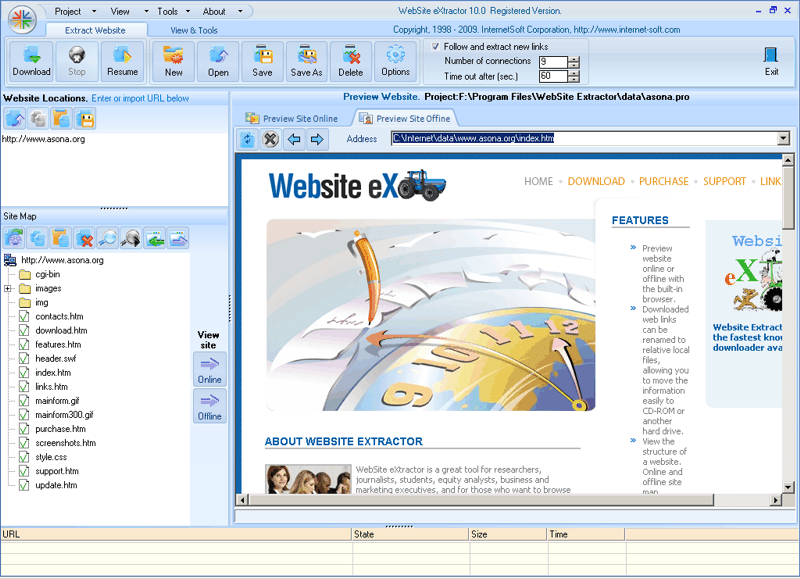
Open - to open a search in progress
Reopen - to quickly open one of the eight searches recently initiated
Save - to save a search project that has been initiated
Save as - to save a search project under a new name
Default options - project options that run by default
Exit - to exit the program
General settings
Before running the program it is advisable to adjust the general settings.

The first thing to do is decide which directory
(new path) you will use to save project files and the path to the directory
for saving files copied (downloaded) from the Internet.
Download and overwrite all files - this option is used to download files onto your hard drive.
Unless this option is highlighted the system will only download a list of scanned hyperlinks into a special file.
Follow new links / URL
A very convenient option that allows you to extract (not download) hyperlinks (websites) not included in the original list of addresses. Here you should decide whether you need to download other websites referred to from one you are downloading. Using this option you will only download the files you order. In this case the sites linked to the one you are investigating will also be downloaded.
For example, you only need to download a list of (URL) addresses
www.internet-soft.com
www.softwarea.com
…
and you don't need to download other domains linked
to the original list of domains (e.g. internet-soft.com)
Links level limit - number of downloading levels - shows the number of steps involved in the hyperlinks.
An example will help to illustrate this option. Let's assume there is a hyperlink from one site to another. There is a link from the second link to the third, etc.
As you can see, a number of hyperlinks must be followed to get from one site to another. This option gives you the greatest possible number of hyperlink steps. Each step enables you to make some hyperlinks with a number of other websites. So if you have selected only one level, you will only be able to copy the websites (let's call them XI websites) to which there is a link on the website you are downloading (scanning), and not the sites with hyperlinks from XI websites.
The following chart shows how the links level limit works.

In this item you enter the number of simultaneous connections.
Save results automatically
Time out for one connection

At the end of this time the program starts downloading the next document.
Number of retries

This option shows the number of attempts to download
the same file if the provider connection or website link is broken off.
The program will make as many attempts to download as you specify.
Does not visit twice already scanned site
Copy subdirectory structure from website
This option shows how the program will be identified when the website is downloaded by a remote server.

For example, when you download a page using
Internet Explorer 5.0, the remote server performs this operations and writes the contents of the server as a protocol. The Extractor program does the same thing when you visit a website.
We would like to draw your attention to the following:
Since the worldwide web contains a huge number of pages great data processing power may be needed as well as a large amount of disk space on your computer to download links and websites. A few hours of work by the program may take up many gigabytes on your hard disk.
Proxy Server
Enter the proxy server properties (if you use a proxy server).
Then choose any other options you would like to use in downloading and searching for hyperlinks.
Schedule
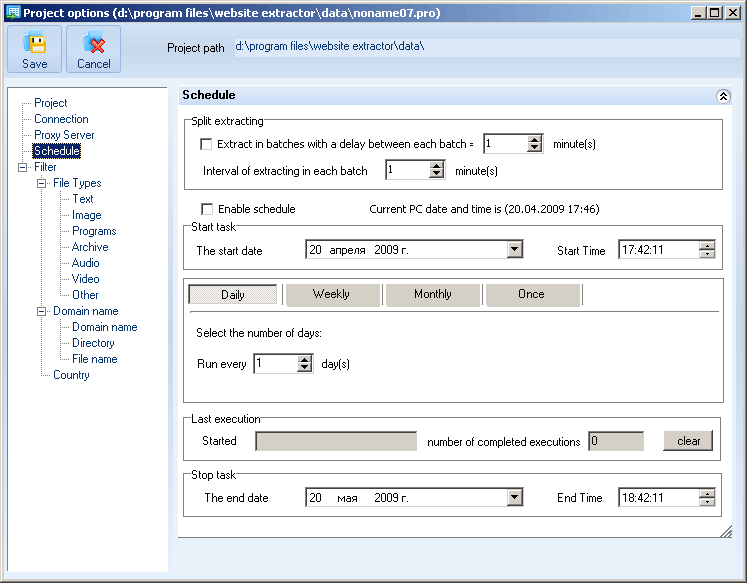
File Type Filter: Limiting the types
and sizes of files
This is important, for example, when you only want to download text documents without banners, pictures or archive files.
In this case, check the option beside html, htm, txt and shtml, etc. files.

You can use these menu options to limit the size of files to be downloaded. If you have selected "Load all file sizes", files of all sizes will be downloaded. Otherwise you will only get the sizes (specified in bytes) you have selected.

You can make limitations by entering certain words in domains. Let's say you're downloading files only from www.offline-browser.com. You would only enter offline-browser as the filter word.
The filter can be used separately:
- to adjust the word content in a domain name;
- to expand the domain;
- to adjust the contents of a certain word in a directory name;
- to modify any given word in the file name.
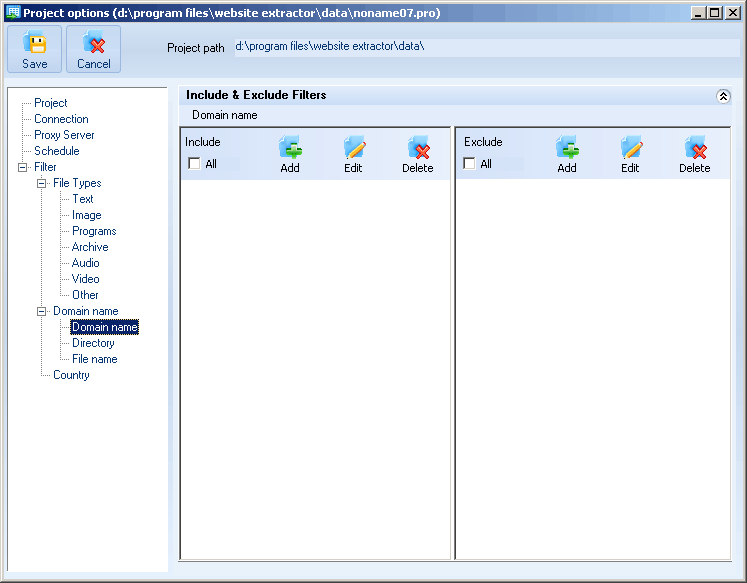
The filter can be used to include and exclude.
If you have entered words into the exclude filter, this means that if the
URL contains any of these words, the corresponding files will not be downloaded.
If you opt for the include filter, this means that only the names containing
the properties specified in the word filter will be downloaded.
This option enables you to make limitations by type and country of the domain.
To do this click on the requested domain type.

This is all you have to do for the main program settings.
When you exit the menu window you save by default the data you have entered and you can proceed to download websites.
Now we can start a project. The default properties you have entered will automatically be called up when you start a new project. These properties can be altered and saved for a later time for each separate project.
The term "project" therefore refers to the total
number of options that define which site and properties are to be downloaded.
Creating a New Project

Then enter in the left window the list of websites (URL) which you would like to download. By pressing the Load button you can download the list from a text file.
By pressing "Options" you enter the specific properties for your search project. Here you should check your directories and make sure you have enough disk space to download the required websites.
Search properties are entered the same way as default properties.
After you have assigned the search parameters, close this window and save the project by pressing "save as". Then give the project file any name you choose.
For example, you could call the site yahoo.pro.
Then proceed to download the data by pressing
the "Download" button.
The properties that are most often changed are "download files" and "number of connections". These properties are conveniently located at the top of the search window toolbar to avoid having to exit this environment and enter data in another window.

After downloading data we recommend pressing "save project as" or "save project".
In this way you will be able to reuse project options, if needed, at a later time.
To access existing projects, press "open" and choose the name of the project.
You can re-download websites by pressing the "download"
button or by continuing the download from the last site you have visited.
To do this select the proper file on the "download tree" and press
"Resume".
- Default Options – used for general default settings. The menu settings chosen in this menu item will be applied to new projects;
- Project Options – used to set the options for a specific project, such as the number of connections, the directory to which files are to be downloaded and filtering properties.
Downloading a website
- Select Project on the main menu and then New. A window will appear for viewing websites and entering download properties;
- Now enter the address of the site you would like to download;
- Press Download / Extract.
- The lower panel will show the pages of the website which is being downloaded;
- After this the websites are downloaded to your computer.
Site Map – Structure of the Site
On the left-hand side panel of the program you can see a map of the site which is to be downloaded according to the links created using the program.

You can also use the local menu, which is called up by clicking on the
right button on your mouse. The structure of the site is created automatically
only if you choose the option "Follow new links".
Online / Offline Preview
On the right-hand side (see figure 4) you can see the window for viewing web pages. This window can run either
- Online
- Offline
 |
If you double-click the mouse on the page you have chosen in the site map the active window of the browser will show the on and offline version of the link. If the online page is open the browser will download the page online. |
| If the offline page is open, the program will attempt to download the file from the hard drive of your computer. If a file has not yet been downloaded onto the hard drive, the directory into which the file is to be downloaded will be highlighted. |
This browser window allows you to perform the same operations as with an ordinary browser: surfing and using links to move around. Use the right-hand mouse key to call up the local menu. You can move the browser window or remove it through the main menu of the program.
You can view pages both offline and online while you download other documents.

The search button can be used to find documents you are looking for in the site map.

Aside from usual html pages a site may contain databases or dynamic html documents. As a matter of fact, documents are created when users make a request or a search query to a database on the web server. These documents may have specific file name symbols or very long URL length and cannot be saved under the same name in MS Windows.
These pages of the program will be automatically renamed and numbered in the proper sequence. That's why the names of files downloaded onto the hard drive of your computer may differ from the URL of the Internet version of a document. This is mainly the case for customized pages.
Other setting options
The program also offers a range of other frequently-used options.
If you have a text file with a list of websites, you can download this file into the site window using the load button.

You can also copy a link into the clipboard and the paste it:
- Into the list of sites to be downloaded;
- Into the site map.

Other properties can be set by selecting options or project options on the menu list. For example, using the latter item you can make customized filter settings and downloading level options. More detailed information can be found in the section entitled General settings.
Additional requirements
- Enlarging the browser window
- Removing the lower and middle panel
- Changing the size or removing the browser window
- Removing the upper panel of the program

Hopefully you will find the program easy to
use. If you like our program please recommend it to your friends and acquaintances
or post a link to our website https://www.internet-soft.com
on your site.
All feedback and suggestions on how to enhance the interface will be welcomed and we look forward to receiving an e-mail from you.
We especially welcome any technical questions about downloading various websites. Please send the URL address of the problem site along with your query.
Copyright: InternetSoft Corporation, 2000 - 2025
You can find updated versions on our website at: https://www.internet-soft.com/download.htm