Click here to order
the registerd version
of Maillist Express
on CD-ROM.
By setting up a powerful website attractive to the public at large. Right. Or you might also try developing reliable ways and means to execute safe transactions online. Right again. There is another high-tech option, however, which might come as a surprise to many. It has to do with e-mail technology.
We're talking about the same e-mail that was widely used before the advent of the World Wide Web, multimedia applications, MP3, etc. Obviously, the new e-mail generation will rise to new heights by incorporating all the positive features of its earlier prototypes. But what really sets the new generation of e-mail technology apart from its predecessors is the use of an automated system designed to create and distribute e-mail messages. InternetSoft Corporation customized e-mail software is the critical factor that can make or break your online business venture. It allows you to communicate and make quick replies to all customers and potential clients.
InternetSoft Corporation direct online marketing research has show that banners and active buttons on Internet websites are insufficient means for generating customer responses. Personalized e-mail messages, however, have been shown to be the optimal approach to marketing online products. E-mail messaging can significantly outperform traditional banner advertising strategies.
Since the symptoms and methods for treating downturns
in e-commerce are now fully understood, why should there be a problem in
the first place? There is a simple reason. The average cost of developing,
creating and sending one personalized e-mail letter manually is well over
$4. This makes it necessary to automate the process. Message filtering
is the first thing that needs to be automated. Next, personalized messages
designed under specific templates should also be sent out on an automatic
basis. With these purposes in mind, InternetSoft
Corporation developed two e-mail systems
in 1997, Netmail and MailList Express.
|
Click here to order the registerd version of Maillist Express on CD-ROM. |
MailList Express.
This program allows users to write personalized letters using message templates. Thus, if you have a client database you can create a single letter template and send personalized messages to a whole list of customers. In this way all addressees will receive letters intended for them only. After a mailing list has been made up you can go back to it at a later time. The program is foolproof and easy to use. The program can also be used to perform a number of other tasks. Maillist Express can manage multiple smtp mail accounts. The new version offers powerful and convenient distribution list filtering options as well as preliminary verification capabilities designed to filter out invalid or non-current addresses. Thus, if you have a list of deleted addresses or other field values to be entered, such as company names, all you have to do is press the filter key and these addressees will be removed from the mailing list. The program contains a built-in algorithm to check whether addresses are correct and current. The program runs on the same basis as the smtp-server. It connect with the server to check whether or not any given address on the sever exists. Invalid e-mails can be deleted from the mail list. By deleting invalid addresses from your mailing list you are reducing network traffic and the channel load of your ISP, while also facilitating current and future distributions.
MailList Express is supplied on a shareware basis,
which means that you are free to download and test out the program before
registering it. To test it now go to
https://www.internet-soft.com.
This new software will help your company cut its costs dramatically. The sooner your business is equipped with these new high-tech tools, the sooner you will start to see greatly enhanced performance when it comes to servicing all in-house and online consumer requests. This is InternetSoft Corporation's formula for success in the ongoing struggle to expand customer bases and sharpen your company's competitive edge. The bottom line, though, is this: your company can either choose to take up the challenge and arm itself with state-of-the-art Internet technology today, or lag behind and risk being sidelined in the intensely competitive world of e-commerce tomorrow.
MailList Express is similar to mail merge in Word Report Builder (https://www.internet-soft.com/wordrep.htm) - you create a form letter and merge personalized data into each letter. Then your email messages are addressed to "Dear John" instead of "Dear Customer," for example.
With MailList Express, you create personalized messages you send via standard Internet email, fast and easy. You don't have to print letters, stuff and stamp envelopes and wait several days for a response. MailList Express lets you open your contact databases directly with no tricky importing.
If you store your customer information in any text delimited file, you can open that contact file directly in MailList Express .
Once you have a targeted mailing list, MailList Express lets you create e-mail message templates. You write one message that will be sent to all the people on your list. Thus, it will be individually addressed with personal data merged into the message body.
MailList Express can be used for sending various reports, as well as any other kind of e-mail communication, both with the existing and the potential clients respectively.
Feature list:
MailList Express has been tested to run on Windows 95, Windows 98, 2000, ME, XP and Windows NT 4.0.
Installation
If the installation program does not open automatically, you can start it yourself:
1) Download the trial version from the website
location
https://www.internet-soft.com/DEMO/maillistexpress.exe
2) Run the program and follow the installation instructions
3) Double click the Maillist icon once you
have completed the installation procedure
Configuration
Prior to sending mailings with MailList Express, you must complete configuration. Select from the File menu "Default Option" The following dialog box appears.
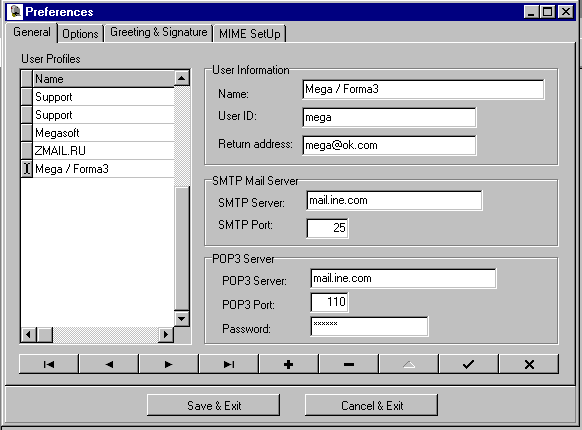
Contact your ISP (Internet Service Provider) for your SMTP Server address.
Creating a new mailing project.
Start the program.
The main program window will appear:
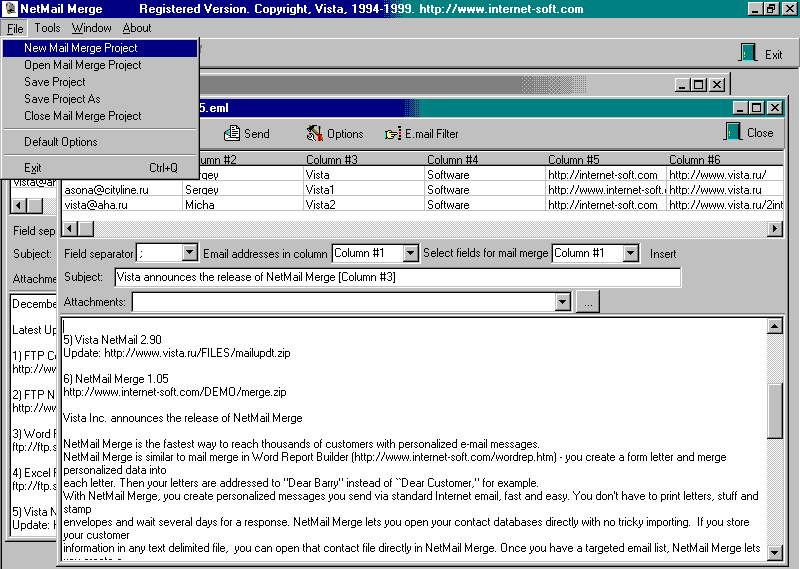
Click on the "New mail merge project" menu item:
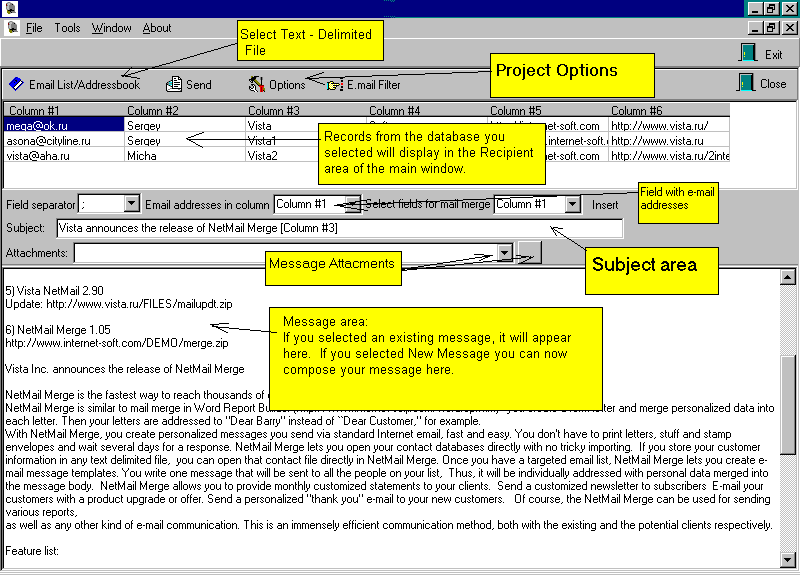
Selecting the Address Book File.
Next you must indicate the source file for your contact information.
Select the appropriate file type from the drop down, in order to display only that type of file in the browse window…
Specify the fields separator (delimiter) to be used
Remember to save your work now! Select the "File" menu, and then the "Save Project As" option, to name and save your project:
The default location for saving your files is in the MailList Express folder, or in the folder to which you last saved a project. However you can browse to the save location of your choice. The default name of the file is MailList Express, so remember to type in a file name that will bring to mind the specific project you created.
The next step is creating or editing your message, and making use of MailList Express for selecting target groups of recipients.
Writing your message is simple. After you have completed creating a new mailing project you will see the main MailList Express window. Just click in the message space and type. If you have content from other documents you wish to use, you can copy from them and paste into the message area.
Adding Database Fields for Personalization
Once you have entered your basic message, you can insert database fields, or merge fields, that will allow MailList Express to insert specific information into your e-mail from each recipient's source record. All available fields from your source file will display in the drop down list under the "Insert" Database Fields button
1) Place your cursor where you wish the field
information to appear.
2) Select a field by "drag and drop" method or
use “Insert” button.
3) The field will appear inside brackets at your
cursor location.
For example: Dear [Column #1]
Editing Your Mailing Project
Once you have saved your mailing project, you can continue to edit the message content and fields, the subject line, and who the mailing will be sent to.
You cannot change the source file that is providing the recipient records once you have saved the project.
When deleting any inserted fields, take care to delete the entire field.
You can use any text delimited databases as your source file.
Unlike other e-mail management programs, MailList Express does not import your source file. Only the link is stored within your mailing project; your source file is opened, read, and used from within your MailList Express mailing project. Therefore, while you have a mailing project open, you will not be able to make changes to the source file.
1. Select Text-Delimited from the choices in the
File Type drop-down list
2. Use the Browse button beside the Filename
And Location field to select your save location; click Save
3. Click Open.
4. Specify the fields separator (delimiter) to
be used
The transmission rates dependent upon your service
provider, time sent due to varying traffic on the internet, and your own
hardware.
Before you send your message, remember to save
your mailing project. To immediately send your personalized message,
click button "Send":
Sending Attachments
You can send attachments with your e-mail message. Access this option by clicking on the Attach button.
From within MailList Express, select menu File and then Open Mailing Project from the drop down menu to open an existing mailing project.
You may reuse a mailing project, and re-send the same message to the same group. Or you can use the same message, and save the project as a new project (select menu File and then option Save Project As.) This can be useful for carrying out repetitive tasks, such as sending an annual reminder to renew membership.
Should you wish to delete an obsolete mailing
project, you will do this using your File Manager or Explorer. When deleting,
make sure to remove all three files for the project; there will be one
MailList
Express message file and two text files associated with each project.
MailList Express has filter tools to allow you to send your mailing to a select group of recipients. Potential recipients for your mailing are shown in the recipient area. However, you may not want a particular mailing to go to all those listed. You can unselect certain records and send only to those that remain selected.
Saving results. Exporting data.
In the registered version you can save the results you have downloaded for subsequent use, for example using electronic tables. To do this, select the appropriate Field Delimiter).
The field delimiter defines the character separating the fields in a text file. By default ";" is used.
Press "Save results" to retain the data which have been selected.
The resulting file will look like this:
Vista; vista@test.com; Sergey
Asona; asona@test.com; Joe
When you open the file at a later time in MS Excel, make sure you choose the same delimiter you used when the file was created. Data are more manageable in table format. They can be more manageable, and can be more readily quantified and modified.
Improting Data from MS Excel
You may create a text delimited file by MS Excel or other program
1) Open *.xls file in MS Excel
2) Save file as *.csv (comma text-delimited
file) or "tab" delimited file
Select this Text-Delimited address book file in
Maillist Express and Click Open.
Specify ";" or "Tab" as a field
separator (delimiter) to be used.
To remove diplicates in Maillist Express use a button "Remove duplicates"
You may also sort and remove duplicates in MS Excel
Data Filter & Exclusion List
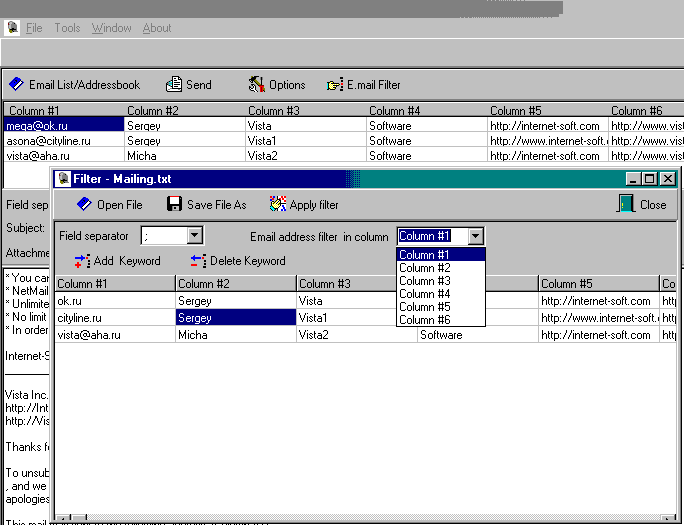
Select Open / Apply Filter from the Tools menu to access this feature.
This is a convenient location for you to keep a list of individuals who have requested to be excluded from your mailings. Entries should be formatted as e-mail addresses, such as: vista@fashion-studio.com. An entire group can also be de-selected. For example, if you wish to exclude all contacts with e-mail addresses at fashion-studio.com, enter: fashion-studio.com
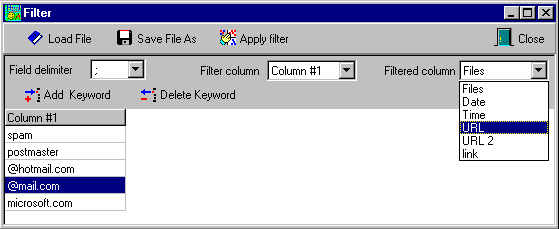
Before saving data you can delete duplicate records by pressing the Remove Duplicates key or use the filter key to perform filter functions.
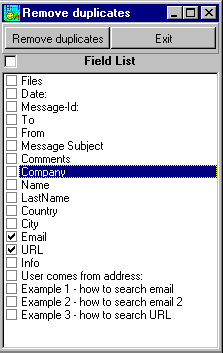
In the former case you should show the column
numbers in which there are to be unique values, and in the latter, the
list of words which are exceptions. If these words are included in the
assigned fields of the database, the corresponding records will be deleted
from the resulting file. The filter will remove all the records which contain
the symbols which have been entered. Therefore, if you enter aaaa into
the filter, all the records containing these symbols in the assigned field
will be removed.
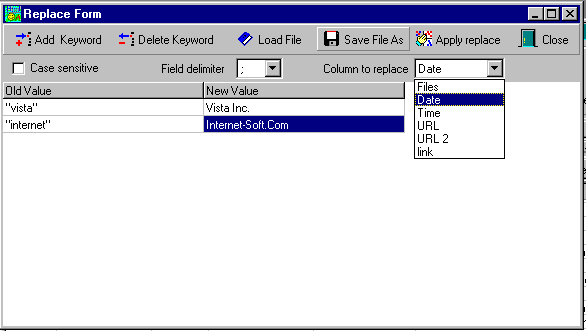
Find and Replace data
Small changes must frequently be made to databases. For example, you might need to remove quotation marks, special symbols or otherwise modify the fields, for example in the following way:
“Telephone 9235523” -> 9235523 etc.
Here the menu window shows the initial value and the modification requested.
User Header Entries & HTML messages
User Header Entries & HTML messages
MailList Express allows users to add header information, which permits different users to accomplish different things.
Access this feature through the Message menu, Options selection.
For example, you can send formatted HTML mail, only without images. Enter the following in the Options box:
Content-Type: text/html; charset="us-ascii"
Then format your HTML message in the message area of your mailing project. HTML e-mail can be personalized
Using MailList Express In A Microsoft Exchange Environment
If you are using MailList Express on a LAN that has Microsoft Exchange 5.5 and the primary mail server, Email addresses other than those in Exchange (to the outside) will be blocked. For MailList Express to work, you need to reroute incoming SMTP mail. The following screen shots should help to do this. Once you have made the change, you need to either: 1) stop and start the function through Control Panel: Services, or 2) re-set your Exchange server.
As the Exchange Admin, double click on "Connections", and then on the "Routing" tab. The default selection is "Do not ….". Select "Reroute incoming SMTP …", and then close out of Exchange. This change will not take place until Exchange is reset.
Software Registration
Until you register you will be using the evaluation version of MailList Express and each e-mail you send will have text at the bottom of each page, informing the recipient that the email was sent using MailList Express :
The message sent by MailList Express (https://www.internet-soft.com). Unregistered Version.
When you register with MailList Express, the message will no longer appear at the bottom of each e-mail message.
You can send maximum 25 messages in a single session using the trial version.
To purchase MailList Express, complete the online form https://www.internet-soft.com/purchase.htm, or the fax registration and order form.
InternetSoft will send you your Key number at the e-mail address you provide on the registration form. Maillist Express costs $29.95 – a great value compared to competitive products!
MailList Express is copyright of InternetSoft
Corporation. 1998 - 2002.